Step 6: Lip Sync Technology
Animate TV presenter lips according to audio/text input for realistic speech synchronization.
Lip Sync Overview
- Research and implement lip synchronization technology (Wav2Lip, etc.)
- Create natural-looking lip movements that match audio speech patterns
- Handle multiple presenters with different lip shapes and speaking styles
- Ensure seamless integration with existing video pipeline
Environment Setup - Step 1
- Conda environment 'lip_sync' created with Python 3.10, dlib, OpenCV, PyTorch
- PowerShell scripts using 'conda run' for reliable environment activation
- Test scripts to verify all components work correctly
- Fixed environment activation issues with proper conda integration
# Test the lip sync environment configuration
powershell -ExecutionPolicy Bypass -File scripts\utils\test_lips\run_environment_test.ps1

# Or run directly with conda
conda run -n lip_sync python scripts\utils\test_lips\test_step1_environment_setup.py

# Expected output:
# Python version: 3.10.19
# dlib version: 20.0.0
# OpenCV version: 4.12.0
# PyTorch version: 2.3.1
# [SUCCESS] All tests passed! Environment Setup - Step 1 is complete.

# Environment details:
# - Location: %USERPROFILE%\miniconda3\envs\lip_sync
# - Activation: Uses 'conda run' for reliable environment isolation
# - Python: 3.10.19 (conda-forge)
# - dlib: 20.0.0 (CUDA-enabled)
# - OpenCV: 4.12.0 (with Qt6)
# - PyTorch: 2.3.1 (CPU)
⚠️ IMPORTANT - Environment Selection: The lip sync scripts MUST be run in the conda lip_sync environment, NOT in the project's venv virtual environment. The conda environment contains dlib, PyTorch, and other dependencies that are not available in the standard venv. Always use the PowerShell runner scripts (e.g., run_environment_test.ps1) or conda run -n lip_sync to ensure the correct environment is used. Running in the wrong environment will result in "dlib not installed" errors and incorrect path calculations.
Technical setup complete: A fully configured conda environment with all required dependencies for lip synchronization. The environment includes CUDA-enabled dlib, OpenCV with GUI support, and PyTorch for deep learning models.
Lip Sync Technology Options - Step 2
- Wav2Lip: Advanced deep learning-based lip sync (most realistic)
- Custom implementations using face landmarks
- Integration with existing video processing pipeline
# Step 1: Clone Wav2Lip repository
git clone https://github.com/Rudrabha/Wav2Lip.git third_party\Wav2Lip

# Step 2: Download Wav2Lip models (automated)
powershell -ExecutionPolicy Bypass -File scripts\utils\download_wav2lip_models.ps1

# Step 3: Download face detection model (s3fd.pth)
powershell -ExecutionPolicy Bypass -File scripts\utils\download_s3fd_model.ps1

# Step 4: Setup all models (clones repo + downloads models)
powershell -ExecutionPolicy Bypass -File scripts\utils\test_lips\setup_wav2lip_models.ps1

# Step 5: Test Wav2Lip processing
powershell -ExecutionPolicy Bypass -File scripts\utils\test_lips\run_wav2lip_test.ps1

# Manual Wav2Lip inference (after setup)
cd third_party\Wav2Lip
conda run -n lip_sync python inference.py \
  --checkpoint_path ..\..\models\wav2lip\wav2lip.pth \
  --face "..\..\scripts\utils\test_lips\TV_background03_HD_lips.jpg" \
  --audio "..\..\scripts\utils\test_lips\girlstorytelling.mp3" \
  --outfile "..\..\data\test_output\lip_synced_video.mp4"
Wav2Lip Setup: Requires cloning the Wav2Lip repository and downloading two model files: wav2lip.pth (~415 MB) for lip synchronization and s3fd.pth (~86 MB) for face detection. The automated setup scripts handle repository cloning and model downloads. Models are stored in models/wav2lip/ and the repository is cloned to third_party/Wav2Lip/.
# Model Files and Locations:
# - Wav2Lip Model: models/wav2lip/wav2lip.pth (415.62 MB)
#   Download URL: https://huggingface.co/tensorbanana/wav2lip/resolve/main/wav2lip.pth
#
# - Face Detection Model: third_party/Wav2Lip/face_detection/detection/sfd/s3fd.pth (85.68 MB)
#   Also copied to: models/wav2lip/face_detection.pth
#   Download URL: https://www.adrianbulat.com/downloads/python-fan/s3fd-619a316812.pth
#
# - Wav2Lip Repository: third_party/Wav2Lip/
#   GitHub: https://github.com/Rudrabha/Wav2Lip

# Test Configuration:
# - Face Image: scripts/utils/test_lips/TV_background03_HD_lips.jpg
# - Audio File: scripts/utils/test_lips/girlstorytelling.mp3
# - Output Video: data/test_output/lip_synced_video.mp4
Helper Scripts: Multiple PowerShell scripts automate the setup process: download_wav2lip_models.ps1 downloads the main Wav2Lip model, download_s3fd_model.ps1 downloads the face detection model, setup_wav2lip_models.ps1 performs complete setup (clone + download), and run_wav2lip_test.ps1 runs the full Wav2Lip test with automatic image-to-video conversion and audio format conversion.
Face Detection & Lip Animation - Step 2b
- Detect presenter face in image using dlib frontal face detector
- Extract 68 facial landmarks focusing on lip region (indices 48-67)
- Convert input text to phoneme sequence with timing information
- Map phonemes to lip shapes (open, closed, pucker, stretch, press)
- Generate animation frames with smooth lip movement transitions
- Create video output with synchronized lip movements
# Step 1: Download face landmark model (first time only)
powershell -ExecutionPolicy Bypass -File scripts\utils\run_lip_sync.ps1 scripts\utils\download_face_model.py

# Step 2: Run lip animation script
powershell -ExecutionPolicy Bypass -File scripts\utils\run_lip_animation.ps1

# Or run directly:
conda run -n lip_sync python scripts\utils\animate_presenter_lips.py

# Script details:
# - Input: scripts/utils/test_lips/TV_background03_HD_lips.jpg
# - Text: "CNR TV: Your trusted source for accurate news, in-depth analysis, and more."
# - Output: scripts/utils/test_lips/presenter_lip_animation.mp4
# - Frame rate: 25 FPS
# - Duration: ~0.1 seconds per character
Face detection and animation: Uses dlib's 68-point facial landmark model to identify lip positions. Converts text to phonemes and animates lips with smooth morphing between shapes. The script automatically detects the presenter's face, extracts lip landmarks, and generates a video with synchronized lip movements.
Wav2Lip Integration - Step 3
- Download and set up Wav2Lip model files and checkpoints
- Process presenter face images through the neural network
- Generate high-quality lip-synchronized video output
- Optimize processing parameters for best results
# Download Wav2Lip model files
# Face detection model
wget "https://iiitaphyd-my.sharepoint.com/:u:/g/personal/radrabha_m_research_iiit_ac_in/EcYWqI6nHrFKqwsyH6d2zmgBKeo64ZGb7HhVKVTI1Sr-Q?e=a3NzEq" -O face_detection.pth

# Wav2Lip checkpoint (main model)
wget "https://iiitaphyd-my.sharepoint.com/:u:/g/personal/radrabha_m_research_iiit_ac_in/Eb3LEzbfuKlJiR600lQWRxgBIY27JZg80f7VduPQaEBZOQ?e=TBFBVW" -O wav2lip.pth

# Step 1: Create temp directory in project root (required for Wav2Lip temporary files)
mkdir temp

# Step 2: Convert audio to WAV format (16kHz, mono, required by Wav2Lip)
# Note: Wav2Lip can handle MP3, but converting to WAV ensures compatibility
ffmpeg -i "scripts\utils\test_lips\girlstorytelling.mp3" -acodec pcm_s16le -ac 1 -ar 16000 "scripts\utils\test_lips\temp_audio.wav"

# Step 3: Run Wav2Lip processing (from project root)
# Note: You can use either the MP3 file directly or the converted WAV file
# Single-line version (easiest to copy-paste) - using MP3:
powershell -ExecutionPolicy Bypass -File scripts\utils\run_lip_sync.ps1 python third_party\Wav2Lip\inference.py --checkpoint_path models\wav2lip\wav2lip.pth --face "data\processed\background_temp.mp4" --audio "scripts\utils\test_lips\girlstorytelling.mp3" --outfile "docs_website\assets\video\TV_background03_HD_lip_synced.mp4" --pads 0 20 0 0 --face_det_batch_size 16 --wav2lip_batch_size 128

# Or using the converted WAV file:
powershell -ExecutionPolicy Bypass -File scripts\utils\run_lip_sync.ps1 python third_party\Wav2Lip\inference.py --checkpoint_path models\wav2lip\wav2lip.pth --face "data\processed\background_temp.mp4" --audio "scripts\utils\test_lips\temp_audio.wav" --outfile "docs_website\assets\video\TV_background03_HD_lip_synced.mp4" --pads 0 20 0 0 --face_det_batch_size 16 --wav2lip_batch_size 128

# Multi-line version (PowerShell uses backticks ` for line continuation) - using MP3:
powershell -ExecutionPolicy Bypass -File scripts\utils\run_lip_sync.ps1 python third_party\Wav2Lip\inference.py `
  --checkpoint_path models\wav2lip\wav2lip.pth `
  --face "data\processed\background_temp.mp4" `
  --audio "scripts\utils\test_lips\girlstorytelling.mp3" `
  --outfile "docs_website\assets\video\TV_background03_HD_lip_synced.mp4" `
  --pads 0 20 0 0 `
  --face_det_batch_size 16 `
  --wav2lip_batch_size 128

# Alternative: Use the automated test script (handles all preprocessing automatically)
powershell -ExecutionPolicy Bypass -File scripts\utils\test_lips\run_wav2lip_test.ps1
Important Preprocessing Requirements: Wav2Lip requires a video file (not an image) for the --face parameter. The face video (data\processed\background_temp.mp4) is already in the correct format. Audio files (MP3) can be used directly, but Wav2Lip will automatically convert them to WAV format (16kHz, mono) if needed. The temp directory must exist in the project root for temporary file storage. The automated test script (run_wav2lip_test.ps1) handles all preprocessing automatically.
Wav2Lip processing: Uses pre-trained deep learning models to analyze audio and synchronize lip movements. The conda environment includes all necessary CUDA-enabled dependencies for optimal performance.
Technical Configuration: The lip sync environment has been successfully configured and tested. All dependencies are working correctly: Python 3.10.19, dlib 20.0.0 (face detection initialized), OpenCV 4.12.0 (image loading verified), and PyTorch 2.3.1 (CPU available). The librosa compatibility issue with newer numba versions has been resolved with a compatibility patch. The environment is ready for Wav2Lip processing.
# Test the lip sync environment
scripts\utils\run_lip_sync.bat python scripts\utils\test_lip_sync.py

# Actual test output:
Activating lip_sync conda environment...
Running command in conda environment: python scripts\utils\test_lip_sync.py
Testing lip sync environment...
Python version: 3.10.19 | packaged by conda-forge | (main, Oct 22 2025, 22:23:22) [MSC v.1944 64 bit (AMD64)]
dlib version: 20.0.0
OpenCV version: 4.12.0
PyTorch version: 2.3.1

Testing basic functionality:
[OK] dlib face detector initialized
[OK] OpenCV image loading works (image shape: (1080, 1920, 3))
[OK] PyTorch CPU available

[SUCCESS] All tests passed! Lip sync environment is ready.
data\processed\background_temp.mp4, Audio: scripts\utils\test_lips\girlstorytelling.mp3, Output: docs_website\assets\video\TV_background03_HD_lip_synced.mp4. The video demonstrates realistic lip synchronization with natural-looking mouth movements.
Wav2Lip Integration - Step 3a - Face Zoom
- Extract and crop the presenter's face from the full video
- Use the cropped face image to reduce processing area
- Significantly reduce lip synchronization processing time
- Maintain high-quality lip synchronization with smaller input
# Step 1: Convert face image to video (Wav2Lip requires video input)
# Note: The face image has been resized to 274x276 (even dimensions) for H.264 compatibility
# Convert face image to video with matching audio duration (9.28 seconds)
ffmpeg -loop 1 -i "docs_website\assets\images\TV_presenter_FaceZoom.jpg" -t 9.28 -vf "fps=25" -pix_fmt yuv420p "docs_website\assets\video\temp_face_zoom.mp4"

# Alternative: Get audio duration dynamically (PowerShell)
# $audioDuration = ffprobe -v error -show_entries format=duration -of default=noprint_wrappers=1:nokey=1 "scripts\utils\test_lips\girlstorytelling.mp3"
# ffmpeg -loop 1 -i "docs_website\assets\images\TV_presenter_FaceZoom.jpg" -t $audioDuration -vf "fps=25" -pix_fmt yuv420p "docs_website\assets\video\temp_face_zoom.mp4"

# Step 2: Run Wav2Lip processing with cropped face (from project root)
# Single-line version (easiest to copy-paste):
powershell -ExecutionPolicy Bypass -File scripts\utils\run_lip_sync.ps1 python third_party\Wav2Lip\inference.py --checkpoint_path models\wav2lip\wav2lip.pth --face "docs_website\assets\video\temp_face_zoom.mp4" --audio "scripts\utils\test_lips\girlstorytelling.mp3" --outfile "docs_website\assets\video\TV_presenter_FaceZoom_lip_synced.mp4" --pads 0 20 0 0 --face_det_batch_size 16 --wav2lip_batch_size 128

# Multi-line version (PowerShell uses backticks ` for line continuation):
powershell -ExecutionPolicy Bypass -File scripts\utils\run_lip_sync.ps1 python third_party\Wav2Lip\inference.py `
  --checkpoint_path models\wav2lip\wav2lip.pth `
  --face "docs_website\assets\video\temp_face_zoom.mp4" `
  --audio "scripts\utils\test_lips\girlstorytelling.mp3" `
  --outfile "docs_website\assets\video\TV_presenter_FaceZoom_lip_synced.mp4" `
  --pads 0 20 0 0 `
  --face_det_batch_size 16 `
  --wav2lip_batch_size 128
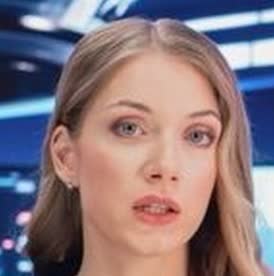
Performance Optimization: By using a cropped face image (TV_presenter_FaceZoom.jpg) instead of the full video background, we significantly reduce the processing area. This approach processes only the face region, which should dramatically reduce the lip synchronization processing time compared to processing the entire 1920x1080 video frame. The cropped face contains all the necessary facial features for accurate lip synchronization while eliminating unnecessary background processing.
Face Extraction: The face has been extracted and cropped from the full presenter image, focusing on the head and upper shoulders. This cropped version (docs_website\assets\images\TV_presenter_FaceZoom.jpg) has been resized to 274x276 pixels (even dimensions) for H.264 video encoding compatibility. The image is optimized for lip sync processing, containing only the essential facial region needed for Wav2Lip inference.
docs_website\assets\images\TV_presenter_FaceZoom.jpg (274x276), Output: docs_website\assets\video\TV_presenter_FaceZoom_lip_synced.mp4.
Original Face Image:
Lip-Synced Output Video:
Wav2Lip Integration - Step 3b - Overlay Face with Lips Synchronized
- Convert background image to video matching the lip-synced face video duration
- Overlay the lip-synced face video onto the background
- Position and scale the face video appropriately on the background
- Generate final composite video with synchronized lips
Step 1: Get the duration of the lip-synced face video
$faceVideoDuration = ffprobe -v error -show_entries format=duration -of default=noprint_wrappers=1:nokey=1 "docs_website\assets\video\TV_presenter_FaceZoom_lip_synced.mp4"
Step 2: Convert background image to video with matching duration
ffmpeg -loop 1 -i "docs_website\assets\images\TV_background03_HD_with_logo.jpg" -t $faceVideoDuration -vf "fps=25" -pix_fmt yuv420p "docs_website\assets\video\temp_background.mp4"
Step 2 (Alternative): Manual duration specification
ffmpeg -loop 1 -i "docs_website\assets\images\TV_background03_HD_with_logo.jpg" -t 20 -vf "fps=25" -pix_fmt yuv420p "docs_website\assets\video\temp_background.mp4"
Step 3: Overlay the lip-synced face video onto the background
Positioned 400 pixels left and 232 pixels up from center (x=423, y=170)
ffmpeg -i "docs_website\assets\video\temp_background.mp4" -i "docs_website\assets\video\TV_presenter_FaceZoom_lip_synced.mp4" -filter_complex "[0:v][1:v]overlay=x=423:y=170" -c:v libx264 -pix_fmt yuv420p -c:a copy "docs_website\assets\video\TV_background03_HD_with_lip_sync.mp4"
Step 3 (Alternative): Using expression syntax
ffmpeg -i "docs_website\assets\video\temp_background.mp4" -i "docs_website\assets\video\TV_presenter_FaceZoom_lip_synced.mp4" -filter_complex "[0:v][1:v]overlay=x='(W-w)/2-400':y='(H-h)/2-232'" -c:v libx264 -pix_fmt yuv420p -c:a copy "docs_website\assets\video\TV_background03_HD_with_lip_sync.mp4"
Single-line version (combines steps 2 and 3, using manual duration)
ffmpeg -loop 1 -i "docs_website\assets\images\TV_background03_HD_with_logo.jpg" -t 20 -i "docs_website\assets\video\TV_presenter_FaceZoom_lip_synced.mp4" -filter_complex "[0:v]fps=25,format=yuv420p[bg];[bg][1:v]overlay=x=423:y=170" -c:v libx264 -pix_fmt yuv420p -shortest "docs_website\assets\video\TV_background03_HD_with_lip_sync.mp4"
Overlay Process: This step combines the lip-synced face video with the full background image to create the final composite video. The background image (TV_background03_HD_with_logo.jpg) is converted to a video matching the duration of the lip-synced face video. The face video is then overlaid onto the background using FFmpeg's overlay filter. The positioning can be adjusted using x and y coordinates, or centered automatically using (W-w)/2 and (H-h)/2 calculations.
Positioning: The face video (274x276 pixels) is positioned on the background (1920x1080) with an offset of 400 pixels to the left and 232 pixels up from center. The positioning formula x=(W-w)/2-400:y=(H-h)/2-232 calculates the center position and then applies the offset. This aligns the face video with the presenter's actual position in the background image. You can adjust these offset values (400 and 232) to fine-tune the alignment if needed.
docs_website\assets\video\TV_background03_HD_with_lip_sync.mp4.
Custom Lip Sync Implementation - Step 4
- Use dlib face landmarks for lip detection and animation
- Implement custom phoneme-to-landmark mapping
- Create morphing animations between lip shapes
- Integrate with existing video processing pipeline
# Custom lip sync using face landmarks
powershell -ExecutionPolicy Bypass -File scripts\utils\run_lip_sync.ps1 python scripts\utils\custom_lip_sync.py \
  --video "docs_website/assets/video/presenter_base.mp4" \
  --audio "docs_website/assets/audio/speech.wav" \
  --output "docs_website/assets/video/presenter_custom_sync.mp4"

# Analyze face landmarks for lip positions
powershell -ExecutionPolicy Bypass -File scripts\utils\run_lip_sync.ps1 python scripts\utils\analyze_face_landmarks.py \
  --image "docs_website/assets/images/presenter.jpg" \
  --output "landmarks.json"

# Generate lip shape morphing animations
powershell -ExecutionPolicy Bypass -File scripts\utils\run_lip_sync.ps1 python scripts\utils\generate_lip_morphs.py \
  --phonemes "speech.mouth" \
  --landmarks "landmarks.json" \
  --output_dir "docs_website/assets/animations/"
Custom implementation: Uses dlib's facial landmark detection to identify lip positions and create morphing animations. Provides full control over the lip sync process and can be tailored to specific presenter characteristics.
Presenter-Specific Calibration - Step 5
- Analyze individual presenter face characteristics
- Calibrate lip movement sensitivity for each presenter
- Create presenter-specific model fine-tuning
- Optimize for different lighting conditions and angles
# For Wav2Lip
python fine_tune.py \
  --presenter_data "data/presenter_01/" \
  --base_model "wav2lip.pth" \
  --output_model "wav2lip_presenter_01.pth"

# For custom solutions
python scripts/utils/calibrate_lip_shapes.py \
  --presenter_id 1 \
  --sample_videos "videos/presenter_01/*.mp4"
Presenter calibration: Each presenter may require individual tuning due to facial structure differences. Collect sample videos of each presenter speaking, then fine-tune the model or adjust parameters for better lip synchronization accuracy.
Quality Optimization - Step 6
- Implement quality assessment metrics for lip sync accuracy
- Optimize video output resolution and frame rate
- Add post-processing for natural-looking results
- Handle edge cases and error conditions
# Quality assessment script
python scripts/utils/assess_lip_sync_quality.py \
  --original_video "presenter_original.mp4" \
  --lip_sync_video "presenter_lip_sync.mp4" \
  --audio_file "speech.wav"

# Post-processing for improved quality
python scripts/utils/post_process_lip_sync.py \
  --input_video "presenter_lip_sync.mp4" \
  --output_video "presenter_final.mp4" \
  --smoothing_factor 0.8
Quality optimization: Use automated metrics to evaluate lip sync accuracy. Post-processing can include temporal smoothing, artifact reduction, and quality enhancement. Monitor for common issues like over-exaggerated lip movements or synchronization drift.
Integration with Video Pipeline - Step 7
- Integrate lip sync processing into main video assembly workflow
- Create automated pipeline from TTS audio to final video
- Handle multiple presenters and conversation scenarios
- Implement batch processing capabilities
# Complete pipeline script
python scripts/pipeline/complete_lip_sync_pipeline.py \
  --script_text "news_script.txt" \
  --presenter_id 1 \
  --output_dir "output/final_video/"

# Batch processing for multiple segments
python scripts/pipeline/batch_lip_sync.py \
  --input_manifest "manifest.json" \
  --output_dir "output/batch/" \
  --parallel_jobs 4
Pipeline integration: Connect lip sync technology with TTS generation, video composition, and final output assembly. Support batch processing for efficient handling of multiple news segments or conversations.
Technical Setup & Troubleshooting
- Conda environment: Pre-configured with all dependencies
- Batch scripts: Automated environment activation
- Test suite: Validation of all components
- Multiple approaches: Wav2Lip, Custom implementations
- GPU support: CUDA-enabled for optimal performance
# Environment validation
powershell -ExecutionPolicy Bypass -File scripts\utils\run_lip_sync.ps1 python scripts\utils\test_lip_sync.py

# Common issues and solutions:

# Issue: "Environment activation failed" (FIXED)
# Solution: Use PowerShell script with conda run
powershell -ExecutionPolicy Bypass -File scripts\utils\run_lip_sync.ps1 your_script.py

# Issue: "dlib not found"
# Solution: Use conda environment
powershell -ExecutionPolicy Bypass -File scripts\utils\run_lip_sync.ps1 python your_script.py

# Issue: CUDA not available
# Note: Environment uses CPU PyTorch, but CUDA-enabled dlib
# For GPU PyTorch: conda install pytorch torchvision torchaudio pytorch-cuda=12.1 -c pytorch -c nvidia

# Issue: Face detection fails
# Solution: Ensure well-lit, clear face images (min 256x256)
# Check face angle and expression neutrality

# Issue: Audio sync problems
# Solution: Use WAV format, 16kHz sample rate, mono channel
# ffmpeg -i input.mp3 -acodec pcm_s16le -ac 1 -ar 16000 output.wav

# Issue: Memory errors
# Solution: Reduce batch sizes in Wav2Lip
# --face_det_batch_size 8 --wav2lip_batch_size 64

# Performance optimization:
# - Use GPU if available
# - Process shorter video segments
# - Optimize face detection padding
Technical infrastructure: Complete conda environment with CUDA-enabled dlib, OpenCV, PyTorch, and all necessary dependencies. Batch scripts automate environment management. Multiple lip sync approaches available based on technical requirements and performance needs.
Integration & Testing - Step 8
- Test all lip sync approaches (Wav2Lip, Custom)
- Validate conda environment functionality
- Integrate with TTS audio generation pipeline
- Test batch processing capabilities
- Optimize performance and quality parameters
# Full pipeline test
powershell -ExecutionPolicy Bypass -File scripts\utils\run_lip_sync.ps1 python scripts\pipeline\test_full_pipeline.py \
  --text "Hello, this is a test of lip synchronization." \
  --presenter_image "docs_website/assets/images/presenter.jpg" \
  --output_dir "docs_website/assets/test_output/"

# Batch processing test
powershell -ExecutionPolicy Bypass -File scripts\utils\run_lip_sync.ps1 python scripts\pipeline\batch_test.py \
  --input_manifest "test_manifest.json" \
  --method "wav2lip" \
  --output_dir "docs_website/assets/batch_output/"

# Quality comparison test
powershell -ExecutionPolicy Bypass -File scripts\utils\run_lip_sync.ps1 python scripts\utils\compare_methods.py \
  --audio "docs_website/assets/audio/speech.wav" \
  --face "docs_website/assets/images/presenter.jpg" \
  --methods "wav2lip,custom" \
  --output_dir "docs_website/assets/comparison/"
Complete testing suite: Validate all lip sync methods, test integration with existing pipeline, and compare quality/performance across different approaches.
Delivery Checklist
- ✅ Conda environment 'lip_sync' with all dependencies configured
- ✅ PowerShell scripts with reliable conda environment activation
- ✅ Environment activation issues resolved with conda run approach
- ✅ Test suite validating all components
- ✅ Multiple lip sync approaches implemented (Wav2Lip, Custom)
- ✅ Integration ready with TTS and video processing pipelines
- ✅ Documentation and troubleshooting guides complete
- Test lip sync accuracy with various presenters and audio types
- Validate output video quality and synchronization precision
- Document optimal parameters for different use cases
- Ensure scalability for batch processing and multiple presenters