Step 2: Fake Presenter Generation
Design AI presenters, generate visuals, and prep assets. Background is driven by an FFmpeg-friendly looping video.
Presenter Design
- Create character briefs (age, tone, wardrobe, ethnicity, on-screen role).
- Define shot list: frontal, 3/4, profile; neutral and expressive poses.
- Lock lighting style to match studio background for consistency.
Background Video via FFmpeg - Step 1
- Use the HD background image (`TV_background03_HD.jpg`) as the static base.
- Overlay the running video (`CRN_RunningVideo.mp4`) scaled to HD.
- Export a 7s H.264 MP4 to `data/processed/background_try.mp4`.
# ensure output directory exists
mkdir -Force .\data\processed | Out-Null

# Step 1: Convert background image to a 7-second video
ffmpeg -loop 1 -framerate 25 -t 7 -i ".\docs_website\assets\images\TV_background03_HD.jpg" `
  -c:v libx264 -pix_fmt yuv420p -preset veryfast -crf 18 `
  -y ".\data\processed\background_temp.mp4"

# Step 2: Overlay the running video on the background video (loop the running video)
# Scale the video to 70% of 1280x720 (896x504), position it on the right side
# Play for 7 seconds, then fade out quickly (0.5 second fade starting at 6.5s)
ffmpeg -i ".\data\processed\background_temp.mp4" `
  -stream_loop -1 -i ".\docs_website\assets\video\CRN_RunningVideo.mp4" `
  -filter_complex "[1:v]scale=896:504:force_original_aspect_ratio=decrease,setsar=1,trim=duration=7,fade=t=out:st=6.5:d=0.5:alpha=1,setpts=PTS-STARTPTS,format=yuva420p[v1];[0:v][v1]overlay=W-w-50:(H-h)/2" `
  -c:v libx264 -pix_fmt yuv420p -preset veryfast -crf 18 `
  -t 7 -y ".\data\processed\background_try.mp4"

# Clean up temporary file
Remove-Item ".\data\processed\background_temp.mp4"
PowerShell command: Two-step process - first converts the background image to a 7s video, then overlays the running video on top. The running video is scaled to 896x504 (70% of 1280x720), positioned on the right side, plays for the full 7 seconds, then fades out with a quick 0.5 second fade at the end. Final output is 7 seconds. Adjust fade timing: fade=t=out:st=6.5:d=0.5 (st=start time in seconds, d=duration). Adjust scale and overlay position as needed. Uses backticks (`) for line continuation. Adjust -crf / -preset for quality vs speed.
Background Video via FFmpeg - Step 2
- Add CNR TV logo to the bottom left of the background image (scaled to 213x213 pixels).
- Draw a deep blue bar (#00006E) extending from the logo to the right edge (1707x213 pixels).
- Use Python script
add_logo_to_background.pyto composite the logo and bar. - Export the final image to `docs_website/assets/images/TV_background03_HD_with_logo.jpg`.
# Run the Python script to add logo and bar to background
python scripts/utils/add_logo_to_background.py
Python script: add_logo_to_background.py - Composites the CNR TV logo at the bottom left of the HD background image and draws a deep blue bar (#00006E) extending from the logo to the right edge. The logo is scaled to ~26.67% of original size (213x213 pixels) and positioned on the border. The resulting blue bar measures 1707x213 pixels (extending from x=213 to x=1920, positioned at the bottom of the 1920x1080 HD frame). Make sure your virtual environment is activated and Pillow is installed.
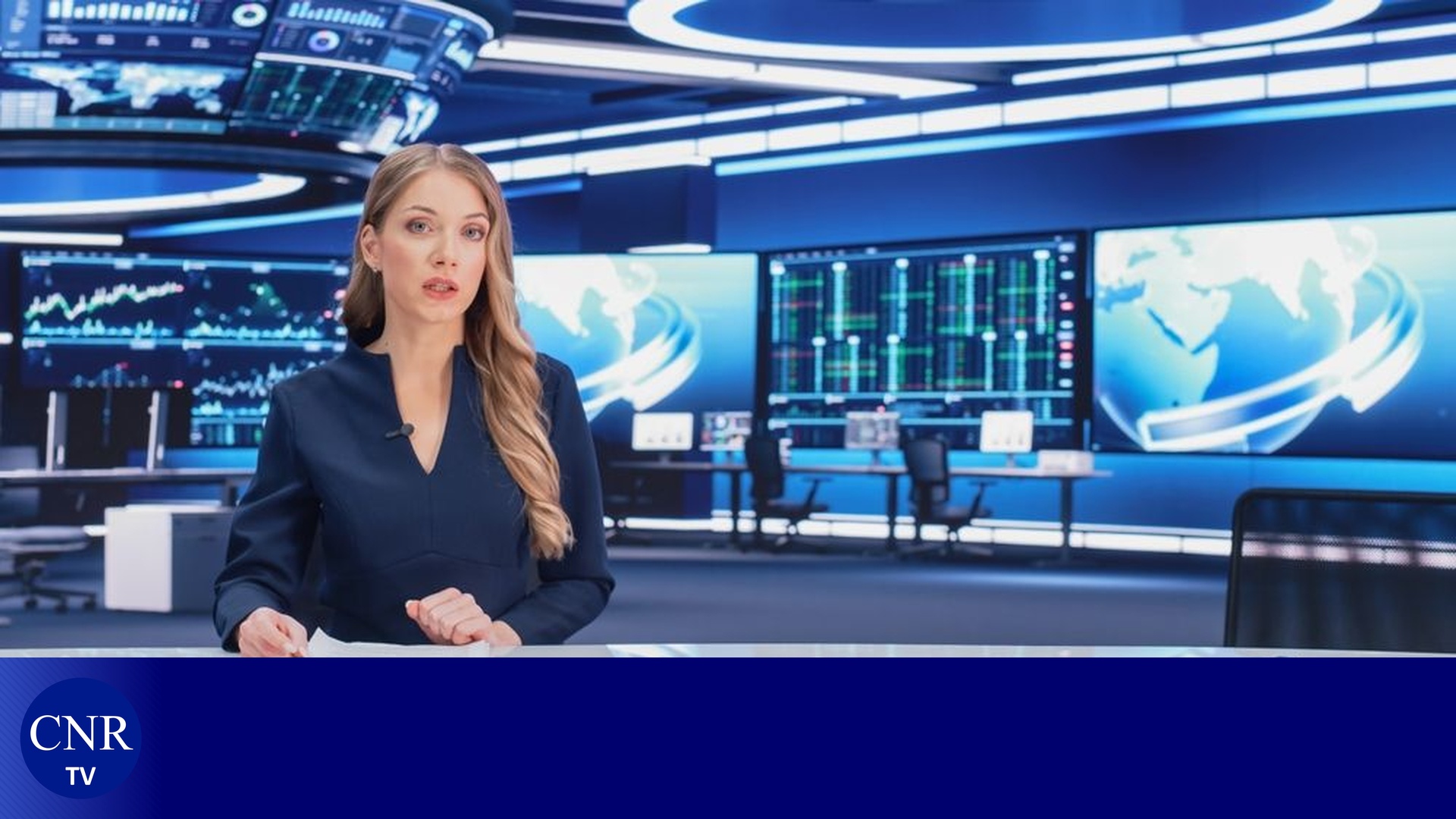
Create Background Video from Image - Step 3a
- Generate a 40-second static video from the background image with logo.
- Use Python script
create_background_video.pyto create the base video. - Export a 40-second H.264 MP4 to `docs_website/assets/video/TV_background03_HD_with_logo.mp4`.
- This video serves as the base for adding scrolling text and other overlays.
# Run the Python script to create 40-second video from background image
python scripts/utils/create_background_video.py
Python script: create_background_video.py - Creates a 40-second static video from the HD background image with logo. The script uses MoviePy 1.0.3 to generate an H.264 MP4 video at 25 fps. Make sure your virtual environment is activated and MoviePy 1.0.3 is installed (pip install moviepy==1.0.3). The output video will be saved to docs_website/assets/video/TV_background03_HD_with_logo.mp4.
pip uninstall moviepy then pip install moviepy==1.0.3. The script will provide diagnostic information if there are compatibility issues.
Scrolling Text Overlay via FFmpeg - Step 3b
- Add scrolling text at the bottom of an existing video.
- Text scrolls from right to left continuously.
- Customize text content, font, size, color, speed, and position.
- Export the final video with scrolling text overlay.
# Add scrolling text at the bottom of a video
# Use the 40-second background video created in Step 3a
# Text scrolls from right to left, positioned at bottom with padding
ffmpeg -i ".\docs_website\assets\video\TV_background03_HD_with_logo.mp4" `
  -vf "drawtext=text='Your scrolling text here':fontfile=/path/to/font.ttf:fontsize=32:fontcolor=white:x='w-mod(t*50\,w+tw)':y='h-th-30':box=1:boxcolor=black@0.5:boxborderw=5" `
  -c:v libx264 -pix_fmt yuv420p -preset veryfast -crf 18 `
  -y ".\docs_website\assets\video\TV_background03_HD_with_logo_text.mp4"

# Alternative: Scrolling text with background bar (recommended for TV-style ticker)
ffmpeg -i ".\docs_website\assets\video\TV_background03_HD_with_logo.mp4" `
  -vf "drawbox=y=h-60:color=black@0.7:width=iw:height=60:t=fill,drawtext=text='Breaking News | Your scrolling text content here | More news updates':fontsize=28:fontcolor=yellow:x='w-mod(t*60\,w+tw)':y='h-45'" `
  -c:v libx264 -pix_fmt yuv420p -preset veryfast -crf 18 `
  -y ".\docs_website\assets\video\TV_background03_HD_with_logo_text.mp4"
PowerShell command: Uses FFmpeg's drawtext filter to overlay scrolling text on the 40-second background video created in Step 3a. The text position is animated using x='w-mod(t*50\,w+tw)' which creates right-to-left scrolling. Adjust parameters: text='...' for content, fontsize= for size, fontcolor= for color, t*50 (change 50) for scroll speed (higher = faster), y='h-th-30' for vertical position (30px from bottom). The second example includes a semi-transparent background bar for better readability. For custom fonts, use fontfile= parameter. Escape special characters in text with backslashes or use a text file with textfile=. Make sure you've completed Step 3a first to generate the base video.
Bottom Bar Scrolling Text Video - Step 4a
- Create a dedicated video for the bottom blue bar area (1657x213 pixels).
- Generate a blue background (#00006E) matching the bar color.
- Add scrolling text from right to left using content from
bottom_screen_scrolling_texts.json. - Use Python script
create_bottom_bar_video.pyto generate the overlay video. - Export a 40-second H.264 MP4 to
docs_website/assets/video/bottom_bar_scrolling.mp4.
# Run the Python script to create bottom bar scrolling video
python scripts/utils/create_bottom_bar_video.py
Python script: create_bottom_bar_video.py - Creates a 40-second video with dimensions 1657x213 pixels with a deep blue background (#00006E). Uses PIL to generate scrolling text animation with white 125pt Times New Roman (serif) text on blue background boxes. Content randomly selected from config/video_material/bottom_screen_scrolling_texts.json. Text scrolls from right to left continuously. The video can be overlaid onto the main background video using FFmpeg for compositing.
Composite Video with Scrolling Text - Step 4b
- Overlay the bottom bar scrolling text video onto the main background video.
- Position the scrolling text at the bottom right of the frame (x=263, y=867).
- Use FFmpeg overlay filter for perfect alignment.
- Use Python script
overlay_bottom_bar.pyto create the composite video. - Export a 40-second H.264 MP4 to
docs_website/assets/video/TV_background03_HD_with_logo_and_text.mp4.
# Run the Python script to overlay bottom bar onto main background
python scripts/utils/overlay_bottom_bar.py
Python script: overlay_bottom_bar.py - Takes the main background video (TV_background03_HD_with_logo.mp4) and overlays the scrolling text video (bottom_bar_scrolling.mp4) at the bottom right position (x=263, y=867). Uses FFmpeg overlay filter with precise positioning to create a seamless composite video. The original videos remain unchanged.
Delivery Checklist
- Store presenters and backgrounds in versioned folders (per shoot/run).
- Keep metadata (lighting, camera angle, seed) alongside renders.
- Validate outputs against HD spec: 1920x1080, H.264, yuv420p.